Monday, March 28, 2022

A STEM Project: Coding in TurtleStitch - Tracing An Image in TurtleStitch Using A Design Created in Silhouette And Appliquéing a Portion of the Design


An Easter Basket and a Tea Towel Embroidered with my Bunny TurtleStitch Design

In my previous blog posting, I created a design in Silhouette, imported the SVG design into TurtleStitch and appliquéd the entire design.  In this blog posting, I will continue my journey but this time, only appliquéing a portion of the design and using a running stitch for the rest of the design.

My tracing program is a SNAP! program whereby simple keyboard commands are typed and the movement of the mouse is recorded in a graphic table of X and Y coordinates. These series of X and Y coordinates create the path that will be embroidered. My computer code had to be modified because only a portion of the design is going to be appliquéd.  I also wanted this code to be saved for the next Turtlestitch session.  I added another column in the array to indicate whether or not the X and Y Coordinate will be appliquéd.

I created my Easter bunny design using the Silhouette software and centered it on an 8 1/2 in. x 11 in. media page. 

Easter Bunny design in Silhouette

I determined that the maximum image size for the Turtlestitch stage area is approximately 3 1/2 inches in height x 4 1/2 inches in width. I resized the image in the Silhouette software to accommodate this TurtleStitch constraint. The image cannot be resized once it has been added to the stage area in Turtlestitch. (Once the design is traced, it can be resized using my TurtleStitch program.)  I then saved the image as an SVG using the Silhouette software.  (Please note that Designer Edition or higher is required to export SVG's in Silhouette.)   The image could be exported as a PNG or a JPEG file. However, the image was too small and blurry in TurtleStitch with the default parameters from the Silhouette program.


My tracing program is a SNAP! program whereby simple keyboard commands are typed and the movement of the mouse is recorded in a graphic table of X and Y coordinates. These series of X and Y coordinates create the path that will be embroidered.


Import my Easter bunny SVG as background to the stage area. 

I recommend tracing the image in an enlarged stage area. To enlarge the stage area, in the ribbon area above the stage, there is a box with two arrows pointing outwards.  Toggle this button to enlarge the stage area or to return to the original size with the palette and scripting pane.

Begin Tracing the Image

Press the "0" (zero) key to clear the "graphic" table. Move the cursor to where you want to start. Make sure that the appliqué command is toggled to green in the program. Press the "u" key to make a jump stitch to this location (I say the word "up" in my head as I do this to remember that the turtle(pen) should be in the "up" position as to not record the movement).  Press the space bar.  Make sure that there is a red line from the center of the design to where you are starting. The red line is a jump stitch. 

Press the letter "u" to move the mouse without drawing. To move multiple times without drawing. Press the letter "u" multiple times. Otherwise, press the space bar to continue drawing.  I placed the stitch points about an 1/8 inch apart. If the points are too close together, the design might not embroider successfully. If you do not like the last point that was traced, it can be removed with the "r" key.  Only the last point can be removed with the "r" key so be careful as to where you place your stitch points.

When you have finished tracing the portion of the design that will be appliquéd, toggle the appliqué variable to false.  Continue tracing the design. The rest of the design will then have a running stitch when embroidered.

Press the "a' key to view the appliquéd area and the running stitched design.

The "e" key MUST be pressed when the design is completed. Make sure you do this before exporting the design to be embroidered for your machine.  I did not do this and my Brother PE 800 machine would not load the exported design.

Export the design for your embroidery machine. Have fun appliquéing the design!

To retrieve the Easter bunny that was designed, press the "a" key. 

The block will be outlined in green when the command is executed and the Easter bunny design will be created in the stage area.  Export the design to your embroidery machine.

When the code is run on your embroidery machine, place a scrap of fabric for the egg appliqué. There are two stops coded in the design.  The first is so that the egg design can be trimmed. The second stop is after the satin stitch applique. This second stop is not really necessary but I did not remove it.( I coded it so that I could trim and redo any spots of the appliqué that did not look nice by manually working with my embroidery machine stitch points.)

I made a tea towel and an egg basket with the Easter Bunny design.

Here is a PDF of the design.  To make the Easter Bunny basket, print out the PDF.

Trace the basket pattern on a piece of 12 in x 12 in. fabric. After tracing the pattern, find the center of each of the six sides and place a pencil mark.  This will be where the embroidery will be centered.

Float a piece of fabric where the egg will reside and tack it down with a running stitch using the embroidery pattern created in Turtlestitch.  The embroidery hoop can be removed from the machine but do NOT remove the embroidery hoop. Cut away the excess fabric. Return the hoop to the embroidery machine to appliqué and complete the design. Repeat for each of the six sides.

Cut the basket pattern. I added a seam allowance at the top of the design because one of my bunnies was not centered correctly. Adjust the pattern as necessary.

Sew each of the sides of the basket with a 1/4 in. seam allowance.

Cut out a lining and batting for the basket.  I quilted the lining material to the batting with a one inch pattern on my sewing machine.

Sew each of the sides of the lining with a 1/4 in. seam allowance.

Align the seams of the lining and the bunny design.  Pin them together at each seam.

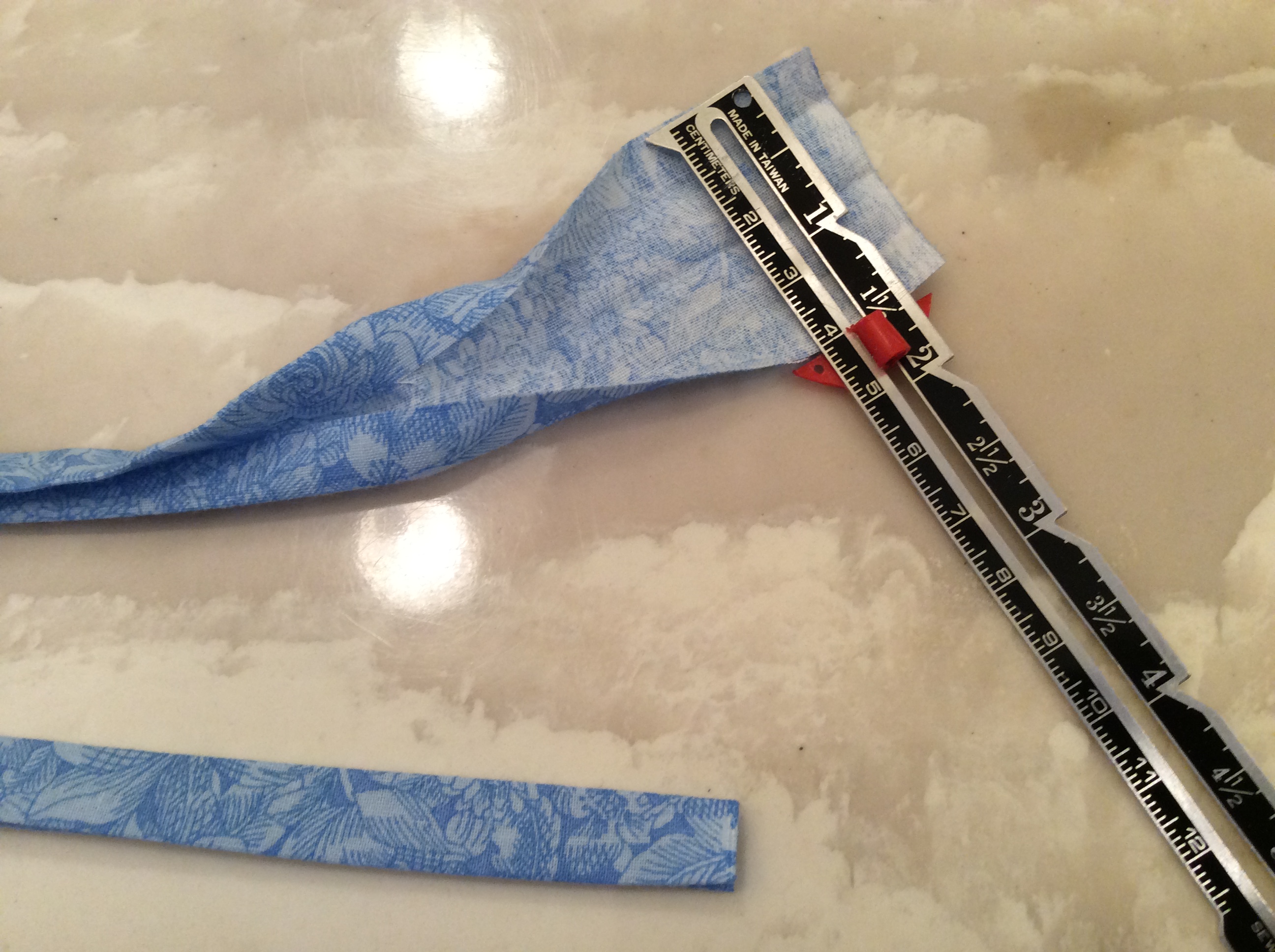
Cut out an 1 1/2 in strip of fabric about a yard long.  Fold to make a bias tape.

Pin and sew the bias tape to the top edge of the basket to complete the basket.

I also made a tea towel to accompany the basket. The tea towel was cut from a 13 in. x 20 in. piece of fabric with each of the sides double folded over with a 1/2 in seam allowance. I sewed bias tape to the bottom end of the towel before sewing the side seams. 


Sunday, March 20, 2022

A STEM Project: Coding in TurtleStitch - Tracing An Image in TurtleStitch Using A Design Created in Silhouette and Then Appliquéing the Design

Tracing an image in TurtleStitch is a simple operation.  An image is added to the stage area by the Import command as a background and then traced point by point along the edge of the image. 

In this blog posting, I will describe how I created an image using the Silhouette program and imported it  into TurtleStitch to be traced and then embroidered with an appliqué stitch. You can follow along as I have included my SVG design of a ballerina and my TurtleStitch program for tracing.

I created my design using the Silhouette software and centered it on an 8 1/2 in. x 11 in. media page. 

I recommend a dark fill so that the image is easier to trace in TurtleStitch.

I determined that the maximum image size for the Turtlestitch stage area is approximately 3 1/2 inches in height x 4 1/2 inches in width. I resized the image in the Silhouette software to accommodate this TurtleStitch constraint. The image cannot be resized once it has been added to the stage area in Turtlestitch. (Once the design is traced, it can be resized using my TurtleStitch program.)  I then saved the image as an SVG using the Silhouette software.  (Please note that Designer Edition or higher is required to export SVG's in Silhouette.)   The image could be exported as a PNG or a JPEG file. However, the image was too small and blurry in TurtleStitch with the default parameters from the Silhouette program.

Here is my ballerina SVG image. Download it to your computer.

My tracing program is a SNAP! program whereby simple keyboard commands are typed and the movement of the mouse is recorded in a graphic table of X and Y coordinates. These series of X and Y coordinates create the path that will be embroidered.

Open My TurtleStitch Program

https://www.turtlestitch.org/run#cloud:Username=Elaine&ProjectName=Ballerina


Import the downloaded ballerina SVG as background to the stage area with the Import command in TurtleStitch.

I recommend tracing the image in an enlarged stage area. To enlarge the stage area, in the ribbon area above the stage, there is a box with two arrows pointing outwards.  Toggle this button to enlarge the stage area or to return to the original size with the palette and scripting pane.

Begin Tracing the Image

Press the "0" (zero) key to clear the "graphic" table. Move the cursor to where you want to start. Press the "u" key to make a jump stitch to this location (I say the word "up" in my head as I do this to remember that the turtle(pen) should be in the "up" position as to not record the movement).  Press the space bar.  Make sure that there is a red line from the center of the design to where you are starting. The red line is a jump stitch. 

Press the letter "u" to move the mouse without drawing. To move multiple times without drawing. Press the letter "u" multiple times. The letter "u" must be pressed twice for a jump stitch to be created. Once at the place where the stitch ends and the next "u" at the place where the next stitch begins. Press the space bar to continue creating stitches.  I placed the stitch points about an 1/8 inch apart. Continue pressing the space bar to trace the design.  If you do not like the last point that was traced, it can be removed with the "r" key. 

The "e" key MUST be pressed when the design is completed. Make sure you do this before exporting the design to be embroidered for your machine.  I did not do this and my Brother PE 800 machine would not load the exported design.

Press the letter "a" to appliqué the design.  (You will notice that the design is repeated twice.  The first time a running stitch is sewn and the second time a satin stitch is sewn.)  Export the design to your embroidery machine.

Appliquéing the Design on Your Embroidery Machine

1). Place the backing material with stabilizer onto your hoop.

2). Float the fabric to be appliquéd on top of this backing material. The appliqué fabric should be an inch or so larger than your appliquéd design so that the entire design will be covered.

3). Run the embroidery program. This will create a running stitch which tacks down the appliqué fabric. (When the program was coded,  the "set color" block stops the embroidery machine.) 

4). When the machine stops, remove the hoop from the embroidery machine. Do NOT remove the embroidery from the hoop.


5). Cut the excess appliqué fabric away from the backing fabric as close to the outer edge as possible. (A satin stitch to be sewn will cover the raw edge of the appliquéd fabric.)

6). Return the hoop to the embroidery machine.

7). Run the embroidery program. The second layer creates a satin stitch to complete the appliquéd design.

Completed Appliquéd ballerina

Saturday, January 22, 2022

A STEM Project: A Slice Form Flower Vase With TurtleStitch(SNAP!) Coded Valentine Roses

A Slice Form Flower Vase With Valentine Roses 

 (I have included all of the cut files. No coding is necessary.  I would like the users of my blog to be inspired by the Turtlestitch coding.)
The paper roses are spirals that are rolled with tweezers and then glued to a base. The roses and vase are about seven inch tall.

Here is the PDF.  I used 65 lb. cardstock.

Here is the .Studio file.

Here is the SVG.

The roses in this design were coded in TurtleStitch which is based on the SNAP! programming language. TurtleStitch is a program which can generate code for an embroidery machine. It can also create these same designs as a line drawing for the Silhouette. Here is my code on the TurtleStitch website. https://www.turtlestitch.org/run#cloud:Username=Elaine&ProjectName=Rolled%20Paper%20Flowers%20w%2fLeaves 

Transferring the TurtleStitch designs to the Silhouette Software

Export the file from TurtleStitch as a DXF file and open it in the Silhouette Studio program.  "Ungroup" the images under the "Object" menu.

"Offset" each image separately. The "Offset" was .05 inches for the circular spiral.

"Ungroup" the image from the "Object" menu.

Pulling the images apart resulted in the above images. The image on the left of this photo is the rolled flower piece. The other two images are not needed and can be deleted.  Resize the circular spiral to your personal preference.

For the triangular spiral and the leaves, the Silhouette software seems to have too many points for these designs and the images gets distorted when it is "Offset". To rectify this problem, "Simplify" the image in "Point Editing" mode and then "Offset" the image. The triangular spiral is offset at .1 inches and the leaves by .09 inches.  


Making the Valentine Roses and Vase

Use tweezers to roll the rose.  

Start at the widest end and roll inward.

Remove the tweezer.  The rose will unroll slightly but this is ok.

Here are three roses that have been rolled and then released from the tweezers (not glued yet).  The two roses on the left are the circular spiral and the one on the right is the triangular spiral. I made three sizes of the sepal (green flower base) so that you can accommodate any size rose depending on how tightly the rose was wound.

Apply glue to the circular base. Notice that I used a lot of glue.  You can use a hot glue gun instead of glue.  If you use regular glue,  you will have to wait for the glue to dry.

Glue on the correct size sepal which is the starlike part underneath the flower. Repeat for all of the roses.  It is nice to make a variety of flower sizes for interest in your flower arrangement.

Score the center of each leaf to add a three dimensional effect to the leaves.   Glue on the leaves to the slice form vase piece.  There are two sizes of leaves for variety.

Two slice form vase pieces are glued together to provide a sturdier structure. Apply glue to the slice form vase piece with the leaves.  Do not glue the top half of the buds as this piece needs to be splayed apart.

Splay apart the buds. Glue on the heart embellishment on top of the heart design on either side of this slice.

Apply glue to the bud.

Attach the rose.  Repeat for the other rose.

The rose slice is then slid into the circle pieces. Repeat for all of the other rose slices.

The roses are a beautiful gift for Valentine's Day.

Thursday, January 20, 2022

A STEM Project: A Paper Lantern Box to Display Turtlestitch Designs

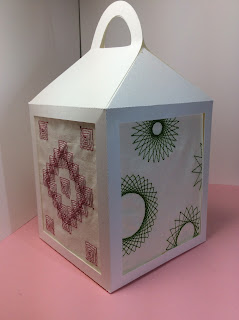
I made many interesting designs in Turtlestitch which I embroidered using my Brother PE 800 embroidery machine. I wanted to display these fabulous designs so I created this paper lantern. The designs can be illuminated using a Dollar Tree tea light.

For my paper crafting friends, TurtleStitch is based on Snap!, a block based programming language. Please check out TurtleStitch, https://www.turtlestitch.org. to learn to code using this powerful "drag and drop blocks" programming language to make designs for an embroidery machine or an electronic paper cutter like the Silhouette or Cricut machine as the designs can be exported as an SVG. After opening the designs in the Silhouette software (Designer Edition or above is required), the images can be sketched on Vellum paper using a Silhouette sketch pen or Foil Quilled.

A Paper Lantern Box to Display Turtlestitch Designs

The design on the left is an example of a spiral pattern. The code can be found on the Turtlestitch website at https://www.turtlestitch.org/users/Elaine/projects/Spiral%20Square%20Block
The design on the right is an example of a star pattern whereby the turtle is rotated in a circular fashion with varying degrees. It can be found on the Turtlestitch website at 


Here is the PDF file.  I used 65 lb. cardstock. This design can be resized if you need to make a smaller or larger lantern.

Here is the .Studio file.

Here is the SVG.

To assemble the lantern.  Glue the two side tabs together.

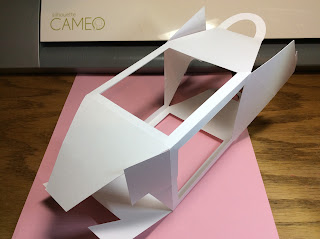
Make the bottom of the box by inserting the flaps as shown above. The C shaped flap is on the left in the photo above.

Complete the bottom by sliding the remaining flap into the side of the other flap.

Make the frames. Using the template as a guide, place the embroidery underneath the template.  Adjust the template so that the design is centered.   Trace along the outer edge of the template with a pencil and cut out the design using scissors.

 Glue a frame on both sides of this design. 

 Glue this frame to the interior of the lantern. Repeat for the other frames.

Slide the inner tabs together to close the interior box.  I used a Glue Dot to close the top flap.

Completed Lantern

The design on the left is an example of recursion whereby the same code is repeated numerous times.  It can be found on the Turtlestitch website at 
The design on the right is an example of Margaret Low's Fan Flower block code.  It can be found on the Turtlestitch website at 

Monday, January 17, 2022

A Valentine Heart Pop-Up Card

A Valentine Heart Pop-Up Card 
This card can fit into an A7 envelope for mailing.

The front of this Valentine card has three layers - a foil layer for color, a doily layer with paper cut-outs and a foil cut-out of the word "Love".

Another foil cut-out of the word "Love" is glued to the interior of the card.  The paper heart with the three tabs is glued to the interior of the folded card.  The bottom tab of this heart is placed in the center of the card on the edge of the fold and glued to the base as shown above.  

The two upper tabs are glued at a right angle to the card.  Placement is shown in the photo above on the top right. Open and close the card to make sure that the placement is correct before gluing.

Glue the red foil, heart doily and love bird embellishment to complete the card.